
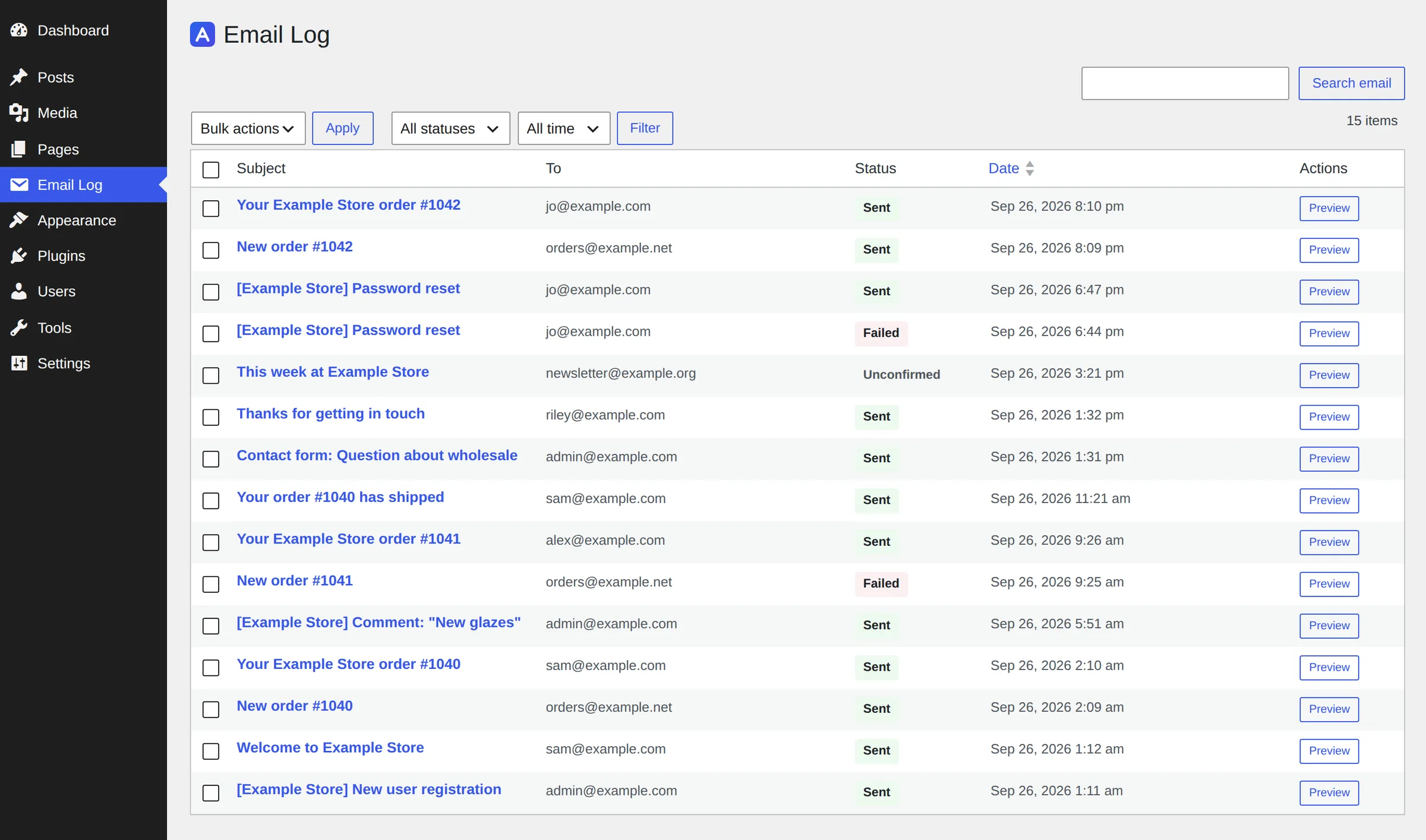
WordPress sends a lot of email: password resets, new user notices, contact form messages, WooCommerce order emails. It keeps no record of any of it. When someone says “I never got the email”, you have nothing to check.
This tutorial adds that record with one small file. Every call to wp_mail() is saved to a database table with its status, sent or failed, and the list shows up under Tools → Email Log. No plugin to install, about 190 lines of code, and you can read all of it.
Where the code goes
Create the file wp-content/mu-plugins/w4dev-email-log.php (create the mu-plugins folder if it is not there) and paste the snippets below into it, in order. Must-use plugins load on every request and cannot be switched off by accident from the Plugins screen, which is what you want for a log. If you prefer, the same file works as a normal plugin in wp-content/plugins/.
The code needs WordPress 5.9 or newer, for the wp_mail_succeeded action.
Step 1: Create the log table
The table is created on the first page load and again only when you bump W4DEV_EMAIL_LOG_DB_VERSION. dbDelta() compares the SQL against the existing table, so changing a column later is just an edit plus a version bump.
<?php
/**
 * Plugin Name: W4dev Email Log
 * Description: Logs every email sent through wp_mail() and shows it under Tools → Email Log.
 * Version: 1.0.0
 */

defined( 'ABSPATH' ) || exit;

const W4DEV_EMAIL_LOG_DB_VERSION = '1';
const W4DEV_EMAIL_LOG_KEEP_DAYS  = 30;

/**
 * The log table name.
 */
function w4dev_email_log_table() {
	global $wpdb;
	return $wpdb->prefix . 'w4dev_email_log';
}

/**
 * Create the table once, and again whenever the schema version changes.
 */
add_action( 'init', 'w4dev_email_log_install' );
function w4dev_email_log_install() {
	if ( get_option( 'w4dev_email_log_db_version' ) === W4DEV_EMAIL_LOG_DB_VERSION ) {
		return;
	}

	global $wpdb;
	require_once ABSPATH . 'wp-admin/includes/upgrade.php';

	$table   = w4dev_email_log_table();
	$charset = $wpdb->get_charset_collate();

	dbDelta(
		"CREATE TABLE {$table} (
			id bigint(20) unsigned NOT NULL AUTO_INCREMENT,
			created_at datetime NOT NULL,
			to_email text NOT NULL,
			subject text NOT NULL,
			message longtext NOT NULL,
			headers text NOT NULL,
			status varchar(20) NOT NULL DEFAULT 'pending',
			error text NULL,
			PRIMARY KEY  (id),
			KEY created_at (created_at)
		) {$charset};"
	);

	update_option( 'w4dev_email_log_db_version', W4DEV_EMAIL_LOG_DB_VERSION );
}
Step 2: Record every email with the wp_mail filter
wp_mail() runs its arguments through the wp_mail filter before anything else, so this is the earliest point to catch an email. The row is written with status pending, and its ID is kept so the next step can update it.
The priority is PHP_INT_MAX so this filter runs last. If another plugin changes the recipient or subject on the same filter, the log shows what was actually sent, not what was first asked for.
/**
 * Record the email the moment wp_mail() is called.
 *
 * Priority PHP_INT_MAX runs after every other wp_mail filter,
 * so we log what is actually sent, not what was first asked for.
 */
add_filter( 'wp_mail', 'w4dev_email_log_record', PHP_INT_MAX );
function w4dev_email_log_record( $atts ) {
	global $wpdb, $w4dev_email_log_id;

	$to      = is_array( $atts['to'] ) ? implode( ', ', $atts['to'] ) : (string) $atts['to'];
	$headers = is_array( $atts['headers'] ) ? implode( "\n", $atts['headers'] ) : (string) $atts['headers'];

	$wpdb->insert(
		w4dev_email_log_table(),
		array(
			'created_at' => current_time( 'mysql', true ),
			'to_email'   => $to,
			'subject'    => (string) $atts['subject'],
			'message'    => (string) $atts['message'],
			'headers'    => $headers,
			'status'     => 'pending',
		)
	);

	$w4dev_email_log_id = (int) $wpdb->insert_id;

	// A filter must hand back what it received.
	return $atts;
}
Step 3: Mark it sent or failed
WordPress fires wp_mail_succeeded when PHPMailer hands the email off successfully, and wp_mail_failed with a WP_Error when it does not. The error message, for example Could not instantiate mail function. or an SMTP authentication error, is saved on the row. That message is usually the answer to “why did this email not go out”.
/**
 * Mark the row as sent once PHPMailer reports success (WordPress 5.9+).
 */
add_action( 'wp_mail_succeeded', 'w4dev_email_log_sent' );
function w4dev_email_log_sent() {
	w4dev_email_log_set_status( 'sent' );
}

/**
 * Mark the row as failed and keep the reason.
 */
add_action( 'wp_mail_failed', 'w4dev_email_log_failed' );
function w4dev_email_log_failed( $error ) {
	w4dev_email_log_set_status( 'failed', $error->get_error_message() );
}

function w4dev_email_log_set_status( $status, $error = null ) {
	global $wpdb, $w4dev_email_log_id;

	if ( empty( $w4dev_email_log_id ) ) {
		return;
	}

	$wpdb->update(
		w4dev_email_log_table(),
		array(
			'status' => $status,
			'error'  => $error,
		),
		array( 'id' => $w4dev_email_log_id )
	);

	$w4dev_email_log_id = 0;
}
Step 4: Show the log under Tools → Email Log
A plain admin table with the latest 50 emails. Click a subject to expand the message body. Only users who can manage_options (administrators) can open it, and every value is escaped on output, because email content is not trusted HTML.
/**
 * Tools → Email Log: the latest 50 emails, newest first.
 */
add_action( 'admin_menu', 'w4dev_email_log_menu' );
function w4dev_email_log_menu() {
	add_management_page( 'Email Log', 'Email Log', 'manage_options', 'w4dev-email-log', 'w4dev_email_log_page' );
}

function w4dev_email_log_page() {
	global $wpdb;

	$table = w4dev_email_log_table();
	$rows  = $wpdb->get_results( "SELECT * FROM {$table} ORDER BY id DESC LIMIT 50" );
	?>
	<div class="wrap">
		<h1>Email Log</h1>
		<table class="widefat striped">
			<thead>
				<tr>
					<th>Date (UTC)</th>
					<th>To</th>
					<th>Subject</th>
					<th>Status</th>
				</tr>
			</thead>
			<tbody>
			<?php if ( ! $rows ) : ?>
				<tr><td colspan="4">No emails logged yet.</td></tr>
			<?php endif; ?>
			<?php foreach ( $rows as $row ) : ?>
				<tr>
					<td><?php echo esc_html( $row->created_at ); ?></td>
					<td><?php echo esc_html( $row->to_email ); ?></td>
					<td>
						<details>
							<summary><?php echo esc_html( $row->subject ); ?></summary>
							<pre style="white-space: pre-wrap;"><?php echo esc_html( $row->message ); ?></pre>
						</details>
					</td>
					<td>
						<?php echo esc_html( $row->status ); ?>
						<?php if ( $row->error ) : ?>
							<br><small><?php echo esc_html( $row->error ); ?></small>
						<?php endif; ?>
					</td>
				</tr>
			<?php endforeach; ?>
			</tbody>
		</table>
	</div>
	<?php
}
Step 5: Delete old entries automatically
Without this the table grows forever. A daily WP-Cron event deletes anything older than W4DEV_EMAIL_LOG_KEEP_DAYS, 30 days by default.
/**
 * Delete entries older than W4DEV_EMAIL_LOG_KEEP_DAYS, once a day.
 */
add_action( 'init', 'w4dev_email_log_schedule_cleanup' );
function w4dev_email_log_schedule_cleanup() {
	if ( ! wp_next_scheduled( 'w4dev_email_log_cleanup' ) ) {
		wp_schedule_event( time(), 'daily', 'w4dev_email_log_cleanup' );
	}
}

add_action( 'w4dev_email_log_cleanup', 'w4dev_email_log_cleanup' );
function w4dev_email_log_cleanup() {
	global $wpdb;

	$table = w4dev_email_log_table();
	$wpdb->query(
		$wpdb->prepare(
			"DELETE FROM {$table} WHERE created_at < %s",
			gmdate( 'Y-m-d H:i:s', time() - W4DEV_EMAIL_LOG_KEEP_DAYS * DAY_IN_SECONDS )
		)
	);
}
Test it
Trigger any email, for example a password reset from the login screen, or run this with WP-CLI:
wp eval 'wp_mail( "[email protected]", "Email log test", "Hello" );'Then open Tools → Email Log. On a local site with no mail server you will see the row marked failed with the reason, which is a good way to see that the failure path works too.
Gotchas
- “sent” means handed off, not delivered. WordPress only knows the email reached your mail server or SMTP service. Spam folders and bounces happen after that, outside WordPress.
- A row stuck on “pending”. Some mailer plugins send through an API and return early from the
pre_wp_mailfilter, so neitherwp_mail_succeedednorwp_mail_failedfires. The email is still logged, just without a final status. A PHP fatal error in the middle of sending leaves the same result. - The log holds private data. Password reset links, order details and contact form messages all end up in the table. Keep the retention short, and think twice before copying this table into a staging site or a support ticket.
- Attachments are not stored. Only the message is saved. Storing files would make the table grow very fast.
- Multisite: each site gets its own table, because the name uses
$wpdb->prefix.
Don’t want to maintain this yourself?
The code above covers the basics. If you would rather not own it, Adminkeep is a free plugin on WordPress.org whose Email Log feature does the same job with more around it: sender and attachment names in the record, filters and search, an email preview, retention and content-storage settings, WP-CLI commands, and an importer for the Email Log plugin. It only listens to wp_mail(), so it works with any SMTP plugin or with none. Turn it on under Settings → Adminkeep and Email Log appears as its own item in the admin menu, with a setting to move it under Tools if you prefer.